Send an SMS to a Google Contact Label
Sending an SMS to a large number of users can be a tedious task because you need to enter the users one by one. ContactsFlow™ (formerly Shared Contacts for Gmail™) has the solution, a built in SMS solution with the ability to message labels as well as individual users!
Time needed: 1 minute
Follow these steps below to learn how to SMS a Google group as well as an individual user:
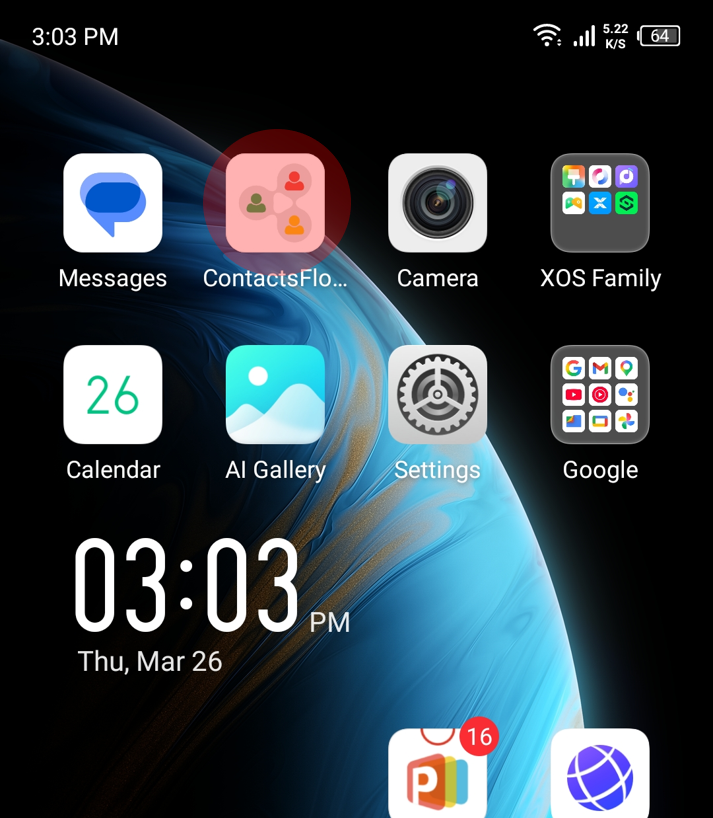
- Open the ContactsFlow™ app.
If you haven’t had it yet, download it from App Store or Play Store.
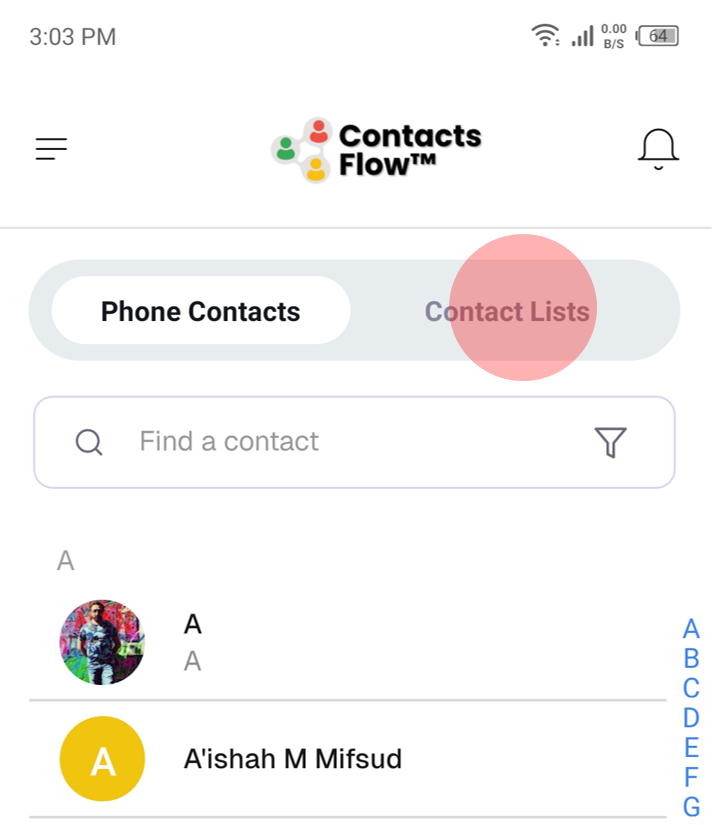
- Go to the Contact Lists tab.
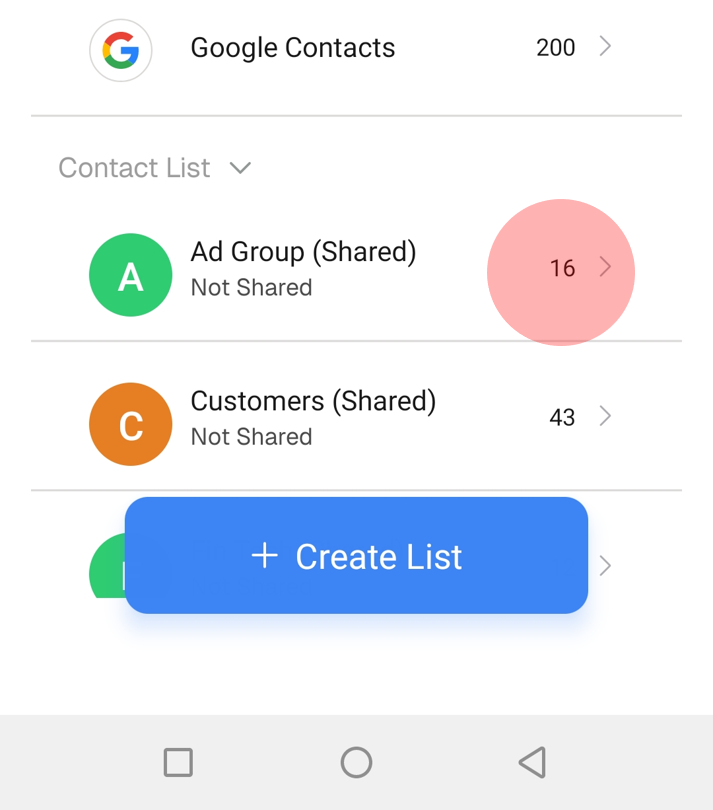
- Find the contact list you want to use, then tap the > icon next to it.
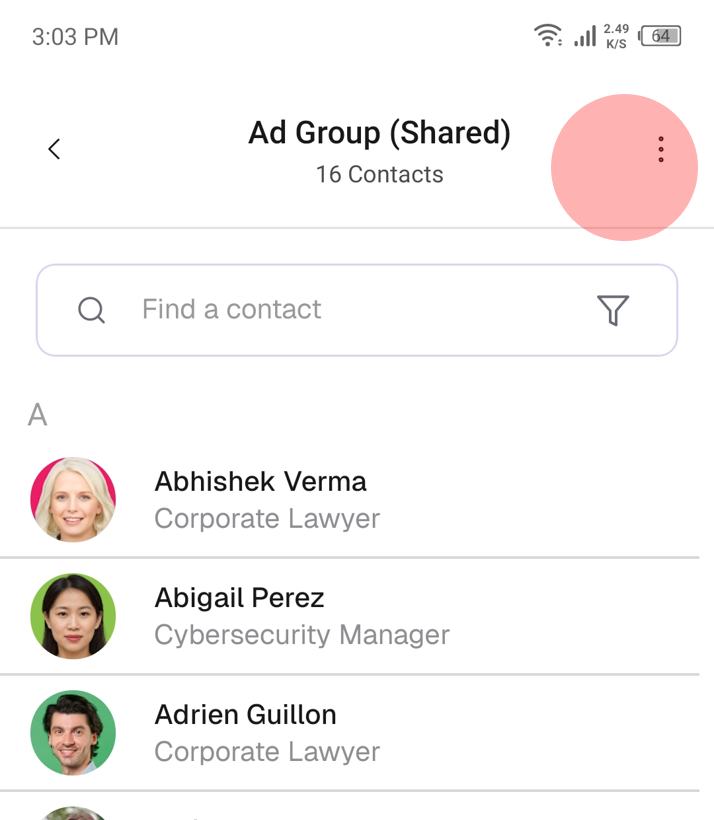
- Tap on the three vertical dots beside the group name to open more options.
- Select Send Group SMS.
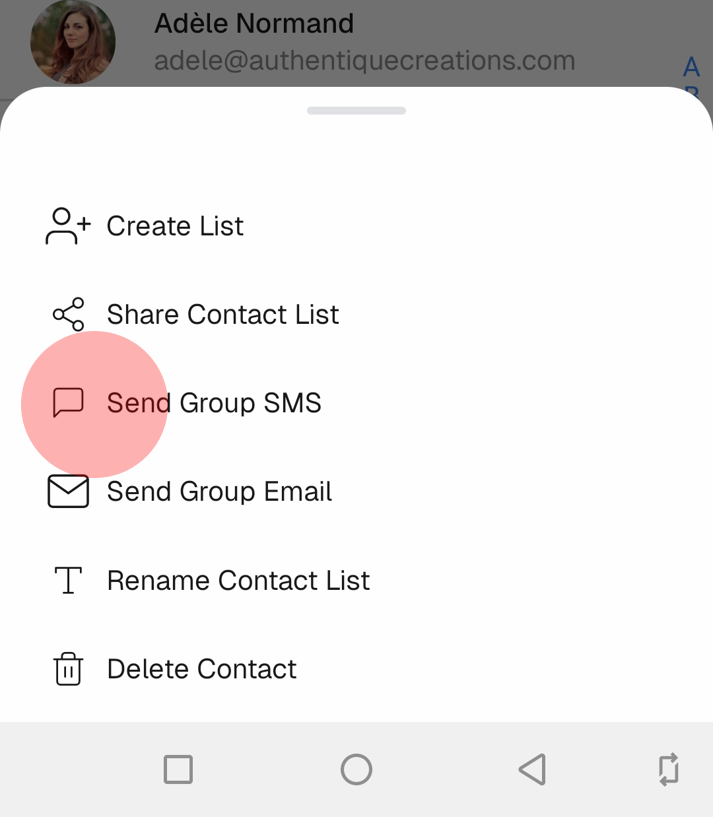
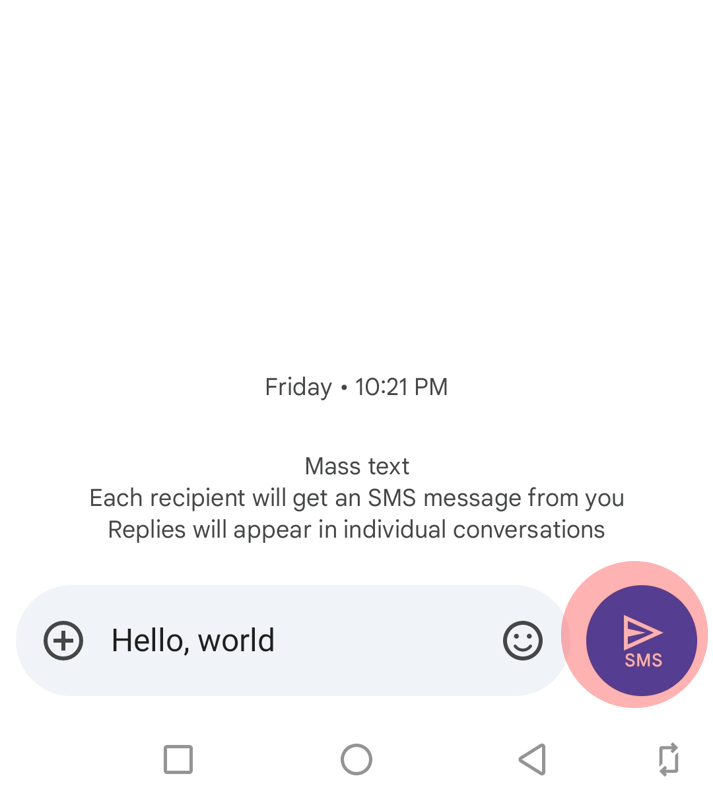
- Your phone’s messaging app will open automatically.
All users from the Google group will appear as recipients of your SMS. Write your message, then hit send.
Now that you know how to send SMS to multiple contacts, you can also message someone directly from the app when needed.
Send an SMS to an Individual Contact in ContactsFlow™
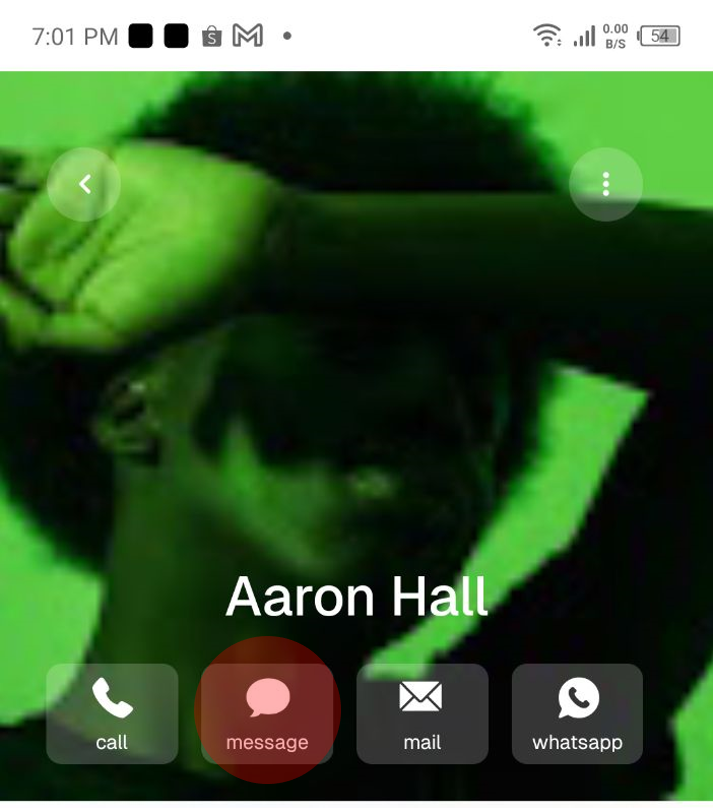
The shared contact will automatically appear in the recipient field of your SMS, so you don’t need to open the app when messaging someone from your shared contacts. However, if you are already in the app, simply tap the contact under Phone Contacts, then tap Message.
Now that you know how to send SMS to a Google group, start using this feature to reach multiple contacts in one step. Select the right group, review your recipients, and send your message directly from the app to save time and ensure everyone receives the same update at once.


